7 Easy Ways to Find your Raspberry Pi IP Address
Finding the IP address on a Raspberry Pi is often one of the first steps to take after any fresh installation, or maybe even after a reboot. Unfortunately, it’s not the easiest thing to do, especially if you are new to this or don’t have a display. Let’s see how to do this.
In the terminal, type the “ip a” command. The IP address is mentioned just after the keyword “inet” for the corresponding interface (eth0 for Ethernet and wlan0 for the Wi-Fi).
This is not the only way, and not necessarily the easiest one, so don’t worry. In this article, I’ll cover all the options you can use to quickly find your Raspberry Pi IP address: desktop interface, commands, network scan or even your Internet router.
If you’re feeling lost in all the Raspberry Pi jargon, I’ve got something to help you out. I’ve created a free glossary that explains all the essential terms and abbreviations in a way that’s easy to understand. It’s a great resource to have by your side. Get your free copy here.
Get the Current IP Address With a Monitor
If the Raspberry Pi is connected to a monitor, you can quickly get the IP address from the desktop interface or the command line. Here is how to do this.
View the IP address in the Interface
If you use Raspberry Pi OS with a desktop environment, the easiest way to get the IP address is to mouse over the network icon, in the top-right corner, near the clock.
You will get something like this :
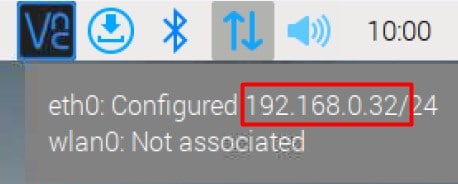
You may get two lines, one per network interface:
- eth0: RJ45 cable (Ethernet) = 192.168.0.32 in this example
- wlan0: Wi-Fi (not associated here)
Get the IP From the Command Line
Whether a desktop environment is installed or not on the Raspberry Pi, a quick way to get the IP address is to use the “ip a” command from the terminal.
You can get answers from real experts in minutes.
Get help with your setup
You’ll get something like this:

The paragraph starting with “eth0” corresponds to the Ethernet cable (wired), and the one starting with “wlan0” is for the Wi-Fi network interface (not on my screenshot, as it isn’t configured).
In this example, the IP address for my Ethernet connection is then 192.168.1.69.
Note: “ifconfig” is the old command, but it’s been deprecated.
You can generally use it to get a similar result:ifconfig
Tip: Command lines can be a pain to memorize. I put the essential Linux commands on a printable cheat sheet so you don't have to keep googling them. You can grab the PDF here if you want to save some time.
Find the Raspberry Pi IP Address From Another Computer
It’s possible to do a network scan or check the DHCP server interface to quickly find the Raspberry Pi IP address, without having to open a session on it. This is pretty convenient when you don’t have a keyboard or display attached.
Do a Network Scan From a Windows PC
A network scan will detect all devices on the local network, and list their names and IP addresses. It’s a convenient solution to quickly find the Raspberry Pi.
If you have a computer on Windows, I recommend using a free tool, named “Advanced IP Scanner” that can scan an entire network or just a portion of it.
The interface is very intuitive, and it might be useful for other projects.
The screenshot below gives you an idea of it, and you can download it on their official website.
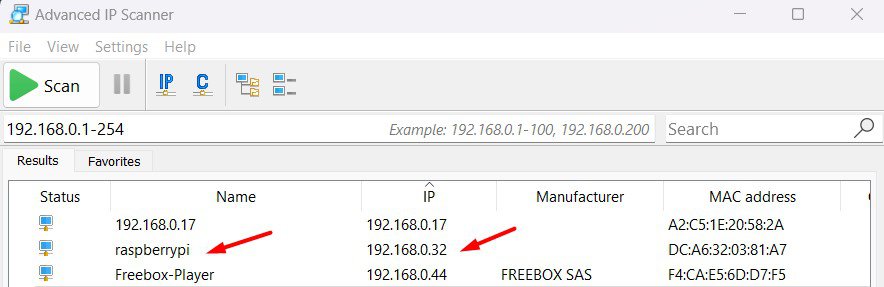
Basically, you set a range of IPs (keep the default value if you don’t know this range), and it will try to ping each of them. If there is an answer, it will give you the host name, IP address and a few other information.
Bonus tip: When I started, the hardest part wasn’t the setup, it was figuring out what to build next. I ended up creating a list of 75+ project ideas with links and difficulty, so it’s easier to just pick something and try it. Grab the list here.

If you want a clearer path than jumping from tutorial to tutorial, my book gives you a step-by-step roadmap to really understand your Raspberry Pi.
Check the book hereIn my screenshot, you can see the Raspberry Pi on the second line, with the IP 192.168.0.32. I don’t even have to do anything on the Raspberry Pi, and if SSH or VNC is enabled, I can directly access it.
Tip: If you keep the default hostname value when you use Raspberry Pi Imager (in the advanced options, as explained here), it will be “raspberrypi”. If you only have one Raspberry Pi on the network, you can try to connect to it directly (instead of the IP address), sometimes it will save you :-).
Automatically Find the IP on Mobile
If you want an easy way to find the Raspberry Pi’s IP address by using your Android phone, simply install the RaspberryTips App.
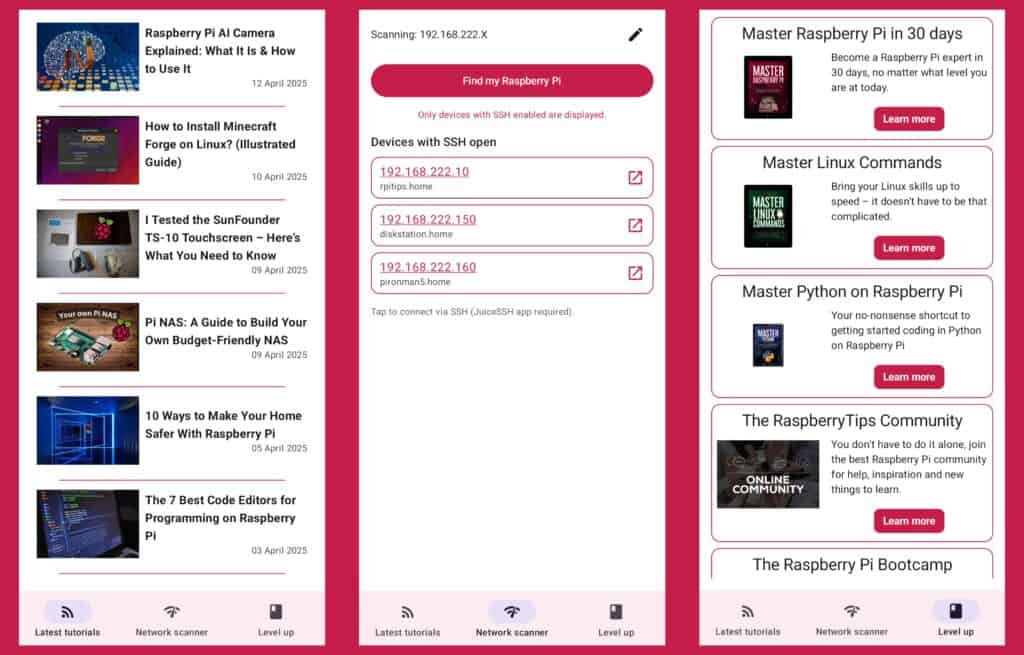
Our app will automatically find the IP address for you! And even let you connect to SSH with ease.
Find the Raspberry Pi IP from a Linux/Mac
Arp Cache
Remove the grep command if you want to show everything.

The command exists on Windows, but you don’t get the hostname, so it’s a bit less useful.
Nmap
Nmap is a network scanner that can be used to list all the devices connected to a specific network.
That’s exactly what we want!
You may need to install it with this command (for a Debian-based system):sudo apt install nmap
Then you can use Nmap to scan the network and display all results :sudo nmap -sP 192.168.1.0/24 | grep raspberry
Make sure to replace the network subnet and hostname to fit your current settings.
For example:
You might also like: Want to install Windows 11 on your Pi? Here's how
The same thing here, the grep command is not mandatory.
Ping
I’ll mention this as a bonus because. It can help with some systems where the previous tools are not available, but it’s not as efficient.
Ping is a popular tool to test if an IP address answers (and therefore if it’s connected to the network).
There is a lesser-known flag you can use to ping your entire network, and collect responses.
You will get the list of used IP addresses and can find which one corresponds to your Raspberry Pi.
Run this command and wait:ping -b 192.168.1.255
If you only have a few devices connected, it might help to narrow down the list of possible IP addresses, but it’s not magical.
Read the Raspberry Pi IP Address on Your Router Interface
In most cases, the DHCP server for a home network is managed by the Internet router. And most of the time, there is a web interface, where you can see a list of all the devices connected to it, with their IP address.
If you have a router like that, with access to this interface, that might be a great option to consider. No command required, nothing to install, and no need to have a display on the Raspberry Pi.
The issue is that there are many different routers, from different brands, so I can’t give you detailed instructions. You’ll have to check your router’s instructions to know exactly how to do this.
Bonus tip: When I started, the hardest part wasn’t the setup, it was figuring out what to build next. I ended up creating a list of 75+ project ideas with links and difficulty, so it’s easier to just pick something and try it. Grab the list here.
As an example, if I access mine, I get something like that on the default page:
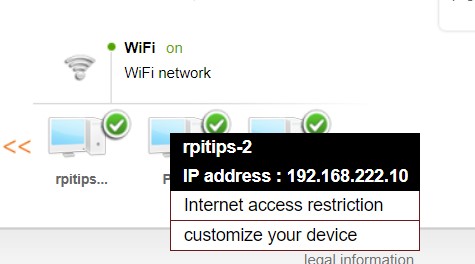
It’s not the best interface, but I can quickly see which devices are connected, with their IP address.
How to Set a Static IP on Raspberry Pi (LAN or WLAN)
Ok, so this time we managed to find the Raspberry Pi on the network, but it would be better to set a static IP address.
By doing this, you won’t have to do the same thing each time you start or Raspberry Pi, it will automatically get the same IP address, all the time.
You can even configure it on your router, so the Raspberry Pi always gets the same IP, even on a fresh new installation. That’s what I do, as I reinstall my Pi almost every day.
You might also like: 7 Surprising Uses for a Raspberry Pi
I have a full guide about this on the website, so you can refer to it if you need help to configure it on your network: 3 Easy Ways To Set A Static IP Address On Raspberry Pi.
What’s Next?
That’s it! We have listed many ways to find your Raspberry Pi on a network, and how to assign a static IP, so you will never look for it again!
You may have even learned some basic networking concepts and are now ready to go further and try new projects:
- 5 ways to remote desktop on Raspberry Pi (Windows/Linux/Mac)
- Install Webmin and configure your system without any command
- 3 ways to use Spotify on your Raspberry Pi (even remotely)
Still stuck after following this guide? Drop your question in the RaspberryTips Community — real Pi users answer fast. Post your question here.
FAQ
Why is my Raspberry Pi not getting an IP address?
If the Raspberry Pi doesn’t get an IP address assigned, it’s most likely that there is an issue with your network connection. Check the cable or Wi-Fi configuration (especially the Wi-Fi country must be set).
How can I use the Raspberry Pi IP address for remote access over Internet?
The Raspberry Pi IP address won’t be reachable from outside the network. There is a difference between the local IP address and the public IP address (your router’s IP on the Internet).
To access your Raspberry Pi remotely (over the Internet), you need to set up port forwarding from your public address to the Raspberry Pi. This can generally be done on your router. More details here.
How do I connect to the Raspberry Pi once I know its IP address?
You can connect to a Raspberry Pi with SSH or a remote access tool like VNC once you know its IP address.
Click on the links to learn more about these solutions.
How do I find the public IP address of my Raspberry Pi?
The public address is generally the same for all devices on your local network, it’s defined on your Internet router. You can use a tool like this one to find it from your computer or Raspberry Pi.
If you want it to redirect to your Raspberry Pi local IP address (the one I talk about in this article), you’ll need to enable port forwarding or some kind of NAT on your router. I explain this in more details in this other article.
How do I access my Raspberry Pi from my router?
Routers will generally list all the devices connected to it, so you can use this interface to find the current IP address of a Raspberry Pi. But, most of the time, routers don’t have remote access features. Use a computer to remote access the Raspberry Pi.
How do I make my Raspberry Pi visible on the network?
Raspberry Pi are visible on the network by default. If you can detect it, make sure the Wi-Fi is enabled and configured or an Ethernet cable is plugged to your network.
Plug a monitor and check the interface directly on the Raspberry Pi screen to troubleshooting this issue. It can be that the system hasn’t boot already, or is stuck somewhere during the boot process.
Whenever you’re ready, here are other ways I can help you:
Test Your Raspberry Pi Level (Free): Not sure why everything takes so long on your Raspberry Pi? Take this free 3-minute assessment and see what’s causing the problems.
The RaspberryTips Community: Need help or want to discuss your Raspberry Pi projects with others who actually get it? Join the RaspberryTips Community and get access to private forums, exclusive lessons, and direct help.
Master your Raspberry Pi in 30 days: If you are looking for the best tips to become an expert on Raspberry Pi, this book is for you. Learn useful Linux skills and practice multiple projects with step-by-step guides.
Master Python on Raspberry Pi: Create, understand, and improve any Python script for your Raspberry Pi. Learn the essentials step-by-step without losing time understanding useless concepts.
Master Linux Commands: Overwhelmed with Linux commands? This book is your essential guide to mastering the terminal. It includes practical tips, real-world examples, and a bonus cheat sheet to keep by your side.
You can also find all my recommendations for tools and hardware on this page.
Read next: Should you wait for Raspberry Pi 6?