I Tried Running a Photoshop Clone on Raspberry Pi
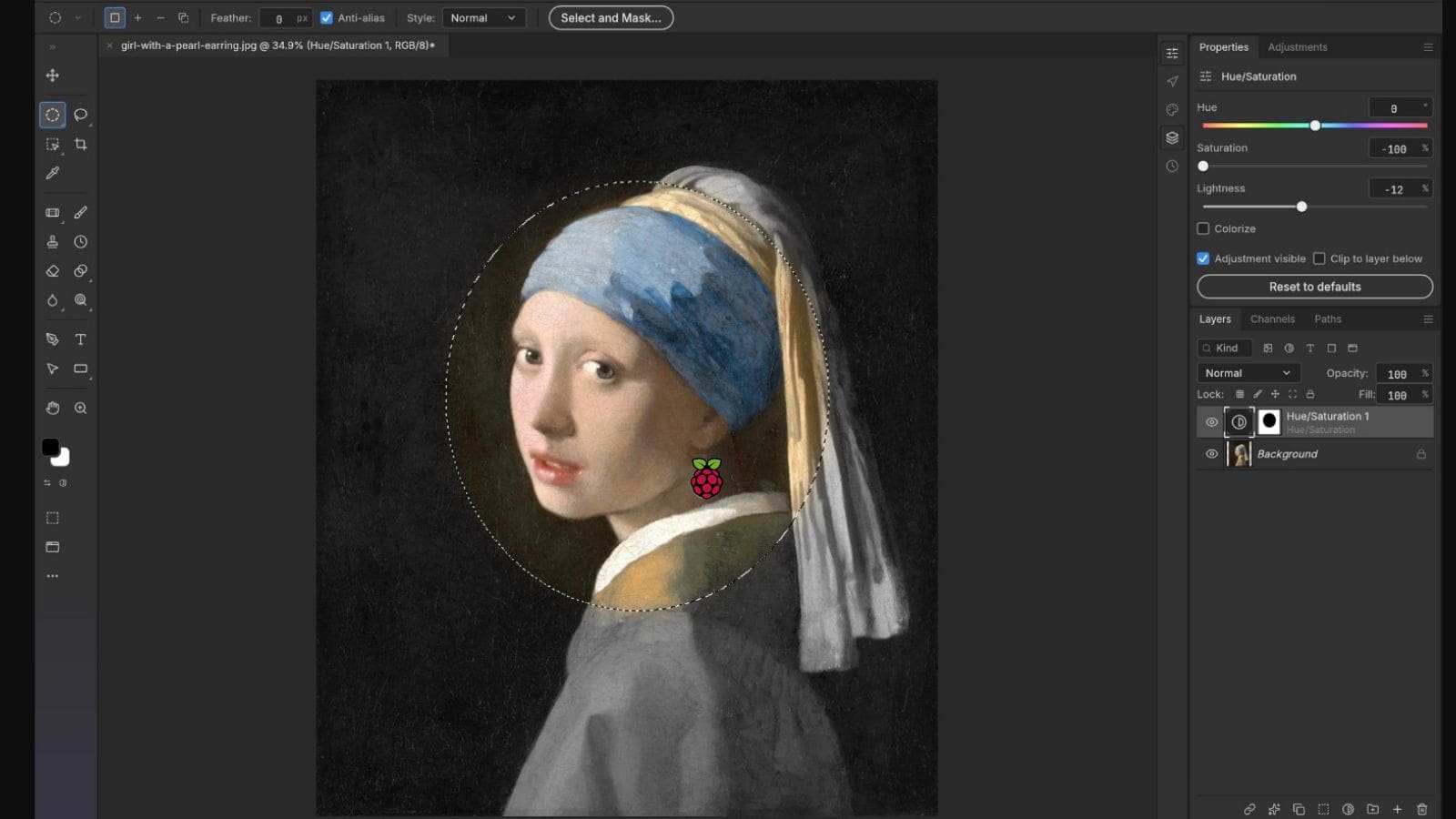
I recently discovered a reverse-engineered Photoshop project that’s a clone of the popular image-editing software from Adobe. It’s called PhotoCraft, and it’s open-source and completely free to use. I decided to play around with it on my Raspberry Pi to see if it lives up to the hype.
PhotoCraft is a Photoshop clone that can run on my Raspberry Pi. It gives me the flexibility to edit images using a web browser from any device on my network.
Truthfully, I’m usually wary when I hear about yet another vibe-coded AI project. They often come in hot and fast before getting abandoned in a few months. Sometimes, nobody wants to do the long-term work of maintaining it, or worse, they could be riddled with security holes that I don’t have the expertise to catch.
Still, the PhotoCraft project made me curious because:
- It runs on ARM64, which means it works on a Raspberry Pi.
- There’s a version that can be self-hosted in a server-client model. Editing graphics is usually sluggish on a Raspberry Pi, but in this model, the Pi acts as the host only. That means the client, a desktop PC or tablet for instance, actually handles the heavy processing.
- It’s served over the local network. By putting it on my Raspberry Pi, I feel more safe about having security measures in place, while making it accessible to any device at home.
As much as I like trusted open-source apps like Krita, I know artists who have tool memory when it comes to Photoshop and prefer its workflow. They often can’t switch to Linux on their main system specifically because they need Photoshop. So I wondered if PhotoCraft could do the job.

If you want a clearer path than jumping from tutorial to tutorial, my book gives you a step-by-step roadmap to really understand your Raspberry Pi.
Check the book hereIt took me less than 10 minutes to get it up and running, and most of that was spent figuring out that I needed to get the photocraft-web release (click “show all assets” to find it). Using the web release, I could get it to run in the client-server model I wanted.
Next, I downloaded and unzipped it into a folder. Then, I pointed my Raspberry Pi web server to it. I used Caddy for this, but you could also use Apache or Nginx as your web server if you prefer.
From my desktop PC, I visited my Raspberry Pi’s local IP address in a web browser, and voilà, I was in business.
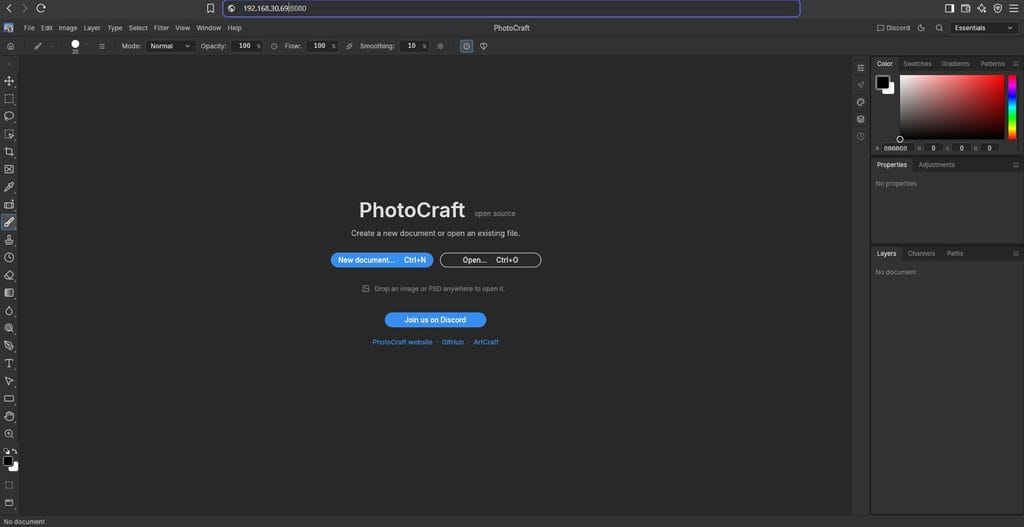
Note: If you’d rather keep it simple and only want to use the image editor on the Raspberry Pi itself, PhotoCraft releases a standalone version you can install using Flatpak.
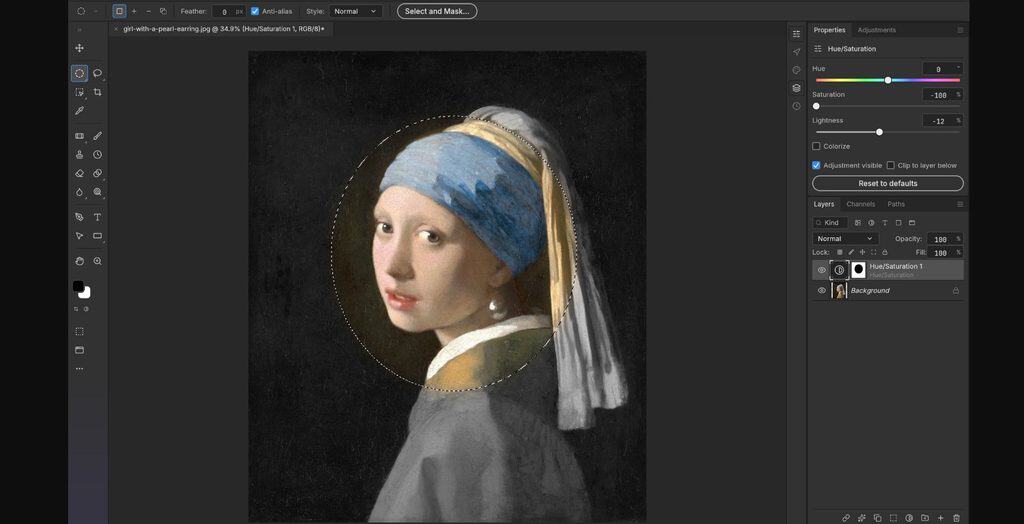
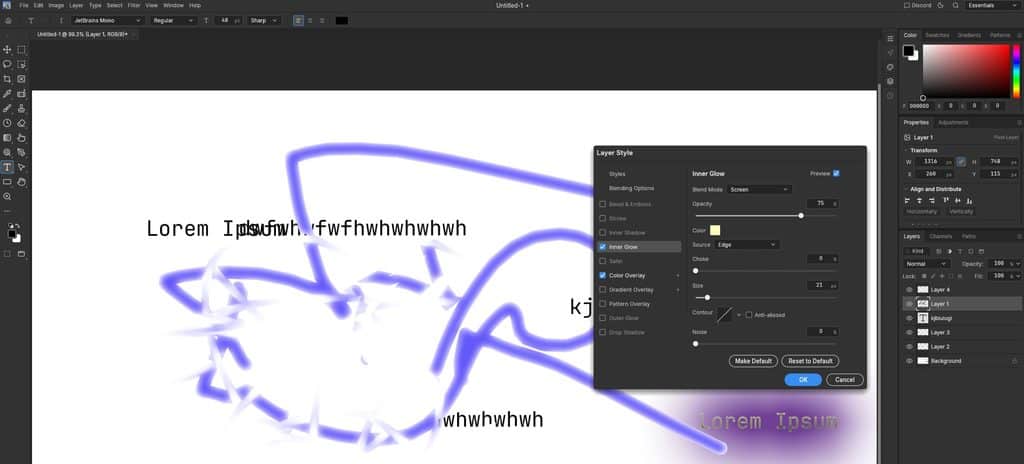
Here are the things I tested that PhotoCraft could do well:
- Layer masks and layer styles.
- Clone stamp and other tools on the left toolbar in the same place as Photoshop.
- Coloring effects.
However, some features didn’t work when I tested it:
- Fetching new fonts on the fly.
- Saving a custom brush.
- Cross-compatibility when opening the saved project file in Adobe Photoshop.
It’s getting updated often at the moment, so some of these issues might get addressed soon. I’m not a professional graphic artist (as you can tell), but I’m sure there are still bugs or other advanced features that don’t have parity with Photoshop.
I’m not certain that PhotoCraft is 100% ready for professional use, but it’s a free alternative with no recurring subscription or cloud shenanigans. I liked that it kept my work local and private on my Raspberry Pi, and it let everyone in my home play with it on any PC or tablet.
That’s all for today, but if you’d like other ideas on how to save on subscription costs, check out our article: 9 Raspberry Pi Projects That Replace a Monthly Subscription.