9 Raspberry Pi Projects That Replace a Monthly Subscription
I’ve never liked paying a monthly fee for software I could run myself. Over the years, this has pushed me to replace more and more cloud services with free, self-hosted alternatives on my local network. And for many of them, a Raspberry Pi is more than enough.
A Raspberry Pi can replace subscriptions for cloud storage, streaming, office software, photo sharing, and more by hosting free, open-source alternatives at home.
I’ve picked 9 subscription categories where a Raspberry Pi can run a free alternative (cloud storage, streaming, etc.). You probably won’t want to replace all of them, but even one could save you a monthly fee.
If you’re looking for inspiration for your next Raspberry Pi project, I’ve put together a list of 75+ ideas with full descriptions, difficulty ratings, and links to tutorials. Whether you’re a beginner or more advanced, there’s something here for you. Grab the list for free here!
Cloud Gaming
Cloud gaming subscriptions like Xbox Cloud Gaming, Amazon Luna, and Nvidia GeForce NOW let you stream games to a TV without a gaming console or other hardware. But you don’t own the games, so when your subscription ends, you lose access to games.
You can say goodbye to this monthly subscription by turning your Raspberry Pi into a game streaming device. Here’s how it works: you install Sunshine on a gaming PC and Moonlight on the Raspberry Pi. The PC does the heavy lifting while the Raspberry Pi streams the output to a TV.
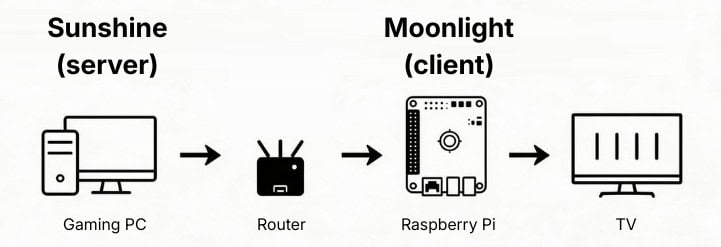
Note: I recommend using Ethernet at every point in the chain. Wi-Fi may be acceptable for less frame-dependent games like turn-based RPGs.
Now every game you have on your PC (for instance, via Steam) is unlocked for couch play forever. Another benefit is that the Raspberry Pi handles game data better than the TV app. Also, you can plug controllers (like the 8Bitdo Pro) into the Raspberry Pi.
Here’s a guide from the official Moonlight documentation to help get you started.
PDF Editing
I used to purchase Adobe Acrobat Pro because it was the only way to modify PDFs or sign them digitally without resorting to the caveman technique of printing and scanning. But they switched from a one-time purchase to a recurring subscription.
You can get answers from real experts in minutes.
Get help with your setup
After getting milked for longer than I’d like to admit, I began looking for self-hosted alternatives. I discovered I could self-host a free PDF editing suite on my Raspberry Pi for free.
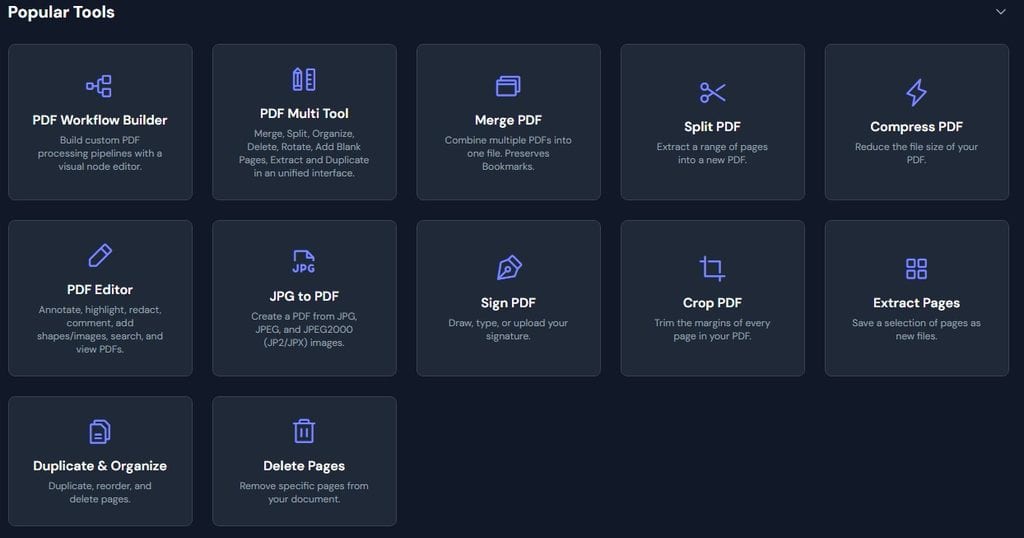
Sure, BentoPDF doesn’t offer every advanced feature of Acrobat Pro, but it has all of the essentials I need. It’s also completely free and keeps documents private on my local network.
There are multiple ways to install BentoPDF on your Raspberry Pi, but I think it’s easiest to serve it as a Docker container, as all that’s required is to set the port. There’s a quick-start guide on how to do this on the project’s GitHub here.
Cloud Storage
I used to be a huge fan of cloud storage services like Dropbox, which let me access my files from anywhere. But data breaches kept happening, subscription costs kept increasing, and some cloud services like Google Drive said they have a right to look through my personal data.
The convenience no longer outweighed the costs, so I decided I wanted to take back control. By turning the Raspberry Pi into your own cloud, you can access your files from any device on your network.
Bonus tip: When I started, the hardest part wasn’t the setup, it was figuring out what to build next. I ended up creating a list of 75+ project ideas with links and difficulty, so it’s easier to just pick something and try it. Grab the list here.

If you want a clearer path than jumping from tutorial to tutorial, my book gives you a step-by-step roadmap to really understand your Raspberry Pi.
Check the book here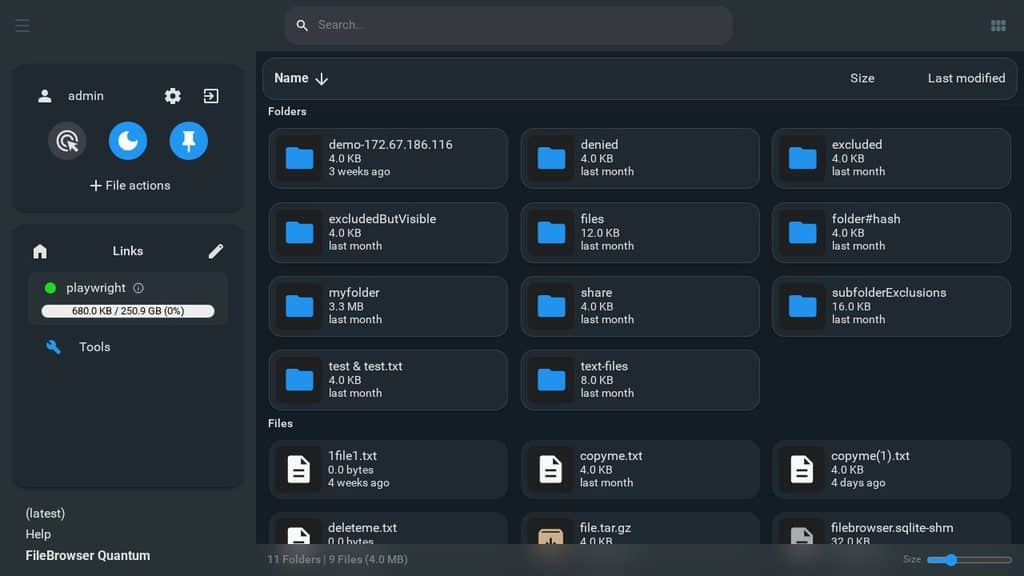
Today, I want to recommend FileBrowser Quantum to keep things simple. You load a webpage, and it loads a graphical file manager for easy access to your files. Installation instructions can be found here (choose Linux or Docker for a Raspberry Pi).
If you prefer more well-known alternatives, we’ve already covered other solutions on this site:
- For a more minimalist solution, try syncthing.
- For something more full-featured, install NextCloud on your Raspberry Pi.
To make your own cloud behave more like a commercial cloud service, you’ll also want to prevent data loss. We’ve got you covered in our guide: How to Use rsnapshot for Incremental Backups on Raspberry Pi.
TV Streaming
A lot of people still haven’t cut the cord with traditional TV because they’re worried they can’t get live news without it. Or maybe you’ve gotten rid of cable for Netflix but find yourself subscribed to too many other streaming services to fill the gaps.
One way to reduce TV streaming subscriptions is to self-host a media server on a Raspberry Pi.
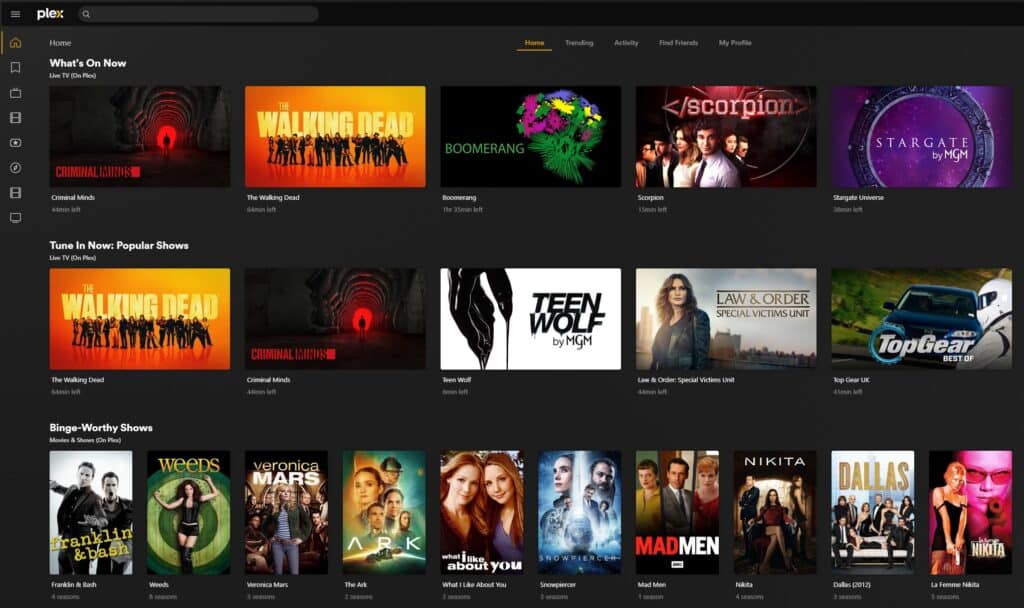
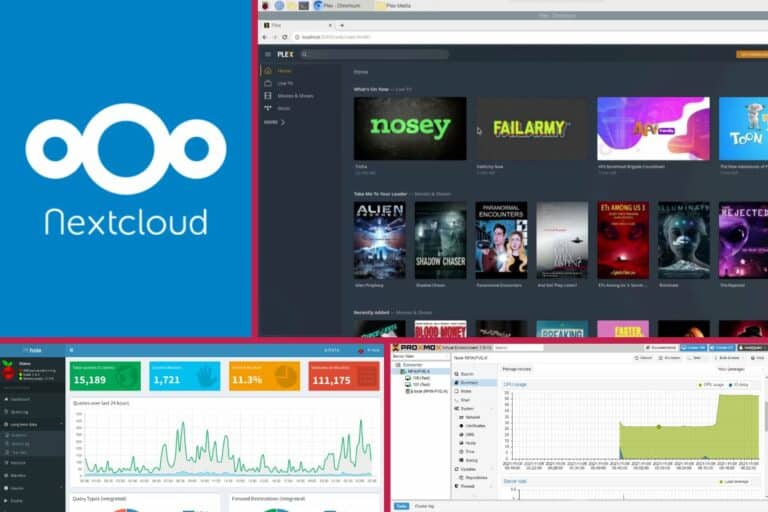
By installing media center software like Jellyfin, Plex, or Kodi, you can watch lots of movies and shows for free. The media comes from using the apps’ connected services, adding a plugin, or providing the media yourself. It’s possible to get live TV this way, including local news, and you can add a TV tuner to pick up more free channels.
You might also like: 7 Surprising Uses for a Raspberry Pi
Kodi is best for a single local display, for when you want to convert a dumb screen into a smart TV, whereas Jellyfin and Plex are central servers meant for streaming to other devices on your home network. If you’re still not sure which one to choose, check out our articles below.
Related Tutorials:
- Raspberry Pi as a Media Center: Complete Guide for Beginners
- Jellyfin vs Plex on Raspberry Pi: Which Is Best?
- OSMC vs LibreELEC: What’s the Best for Kodi?
Music Streaming
The best thing about music streaming services like Spotify and Tidal is the algorithm, which creates playlists and recommends new tracks for you to discover. Unfortunately, you don’t own anything, and if you don’t keep paying, the music stops.
If you don’t want to pay for this monthly subscription, you can build your own music streamer using a Raspberry Pi. The key feature you need to replicate is scrobbling. It sounds like a dirty word, but scrobbling means recommending songs based on your listening history.
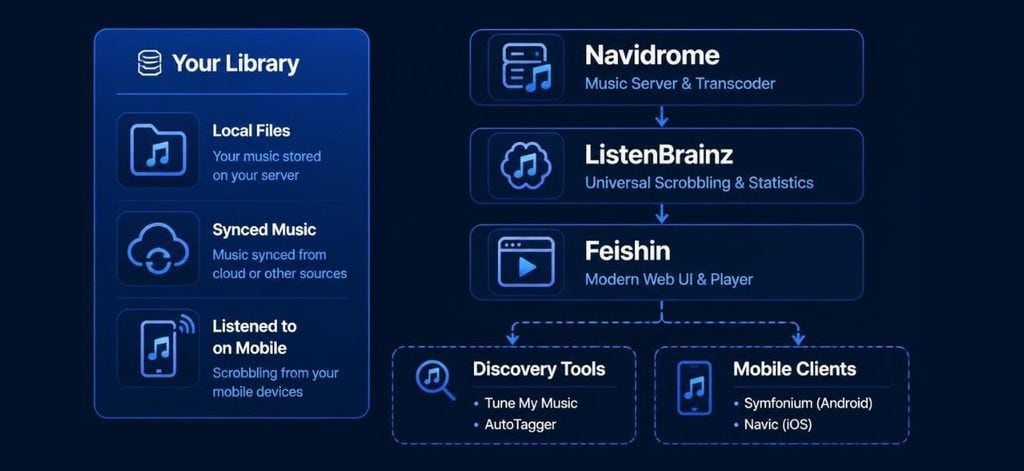
It’s a little involved, but the stack looks like this:
- Host the music server on your Raspberry Pi: Navidrome.
- Connect it to a scrobbler to get music recommendations: ListenBrainz.
- Install a client app to listen on your devices: Feishin.
This setup can create playlists algorithmically by going through your existing music collection. The catch is that you’ll have to provide your own music library or connect to your friends’ servers. There are plugins to listen to internet radio if you want to discover new music that way.
Want even more ideas? I put together a free resource with over 75 Raspberry Pi project ideas, each with a quick description, tutorial link, and hardware requirements. Whether you’re just starting out or looking for something to do this weekend, this list will keep you busy for a while. Just click here to get instant access.
Check this: 15 Easy Projects for Raspberry Pi Beginners
Audiobooks & Podcasts
Audible is the leading audiobook platform because it doesn’t limit your listening time, and it has a lot of features tailored for this format. There’s one problem: on the most common subscription tier, you lose access to all of your books if you cancel the service.
This subscription service can be replaced by self-hosting audiobooks, ebooks, and podcasts on a Raspberry Pi.
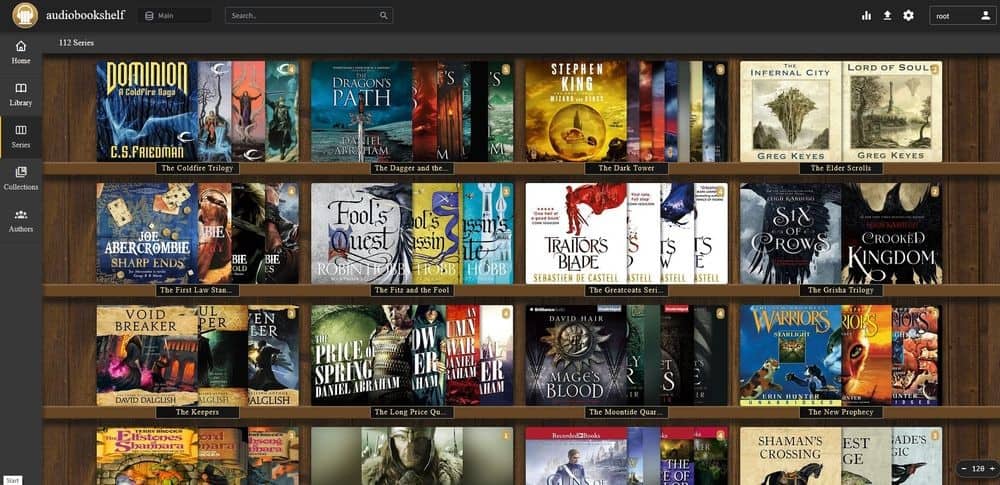
Audiobookshelf is a project designed specifically for these formats. It can:
- Sync your listening and reading progress across different devices.
- Pair audiobooks with their book text.
- Automatically sort audiobooks/ebooks/podcasts and fetch covers.
- Regularly download newly released podcasts via RSS feed.
The software is free, and everything you put on it is yours. You can learn how to install it from the documentation here. The Docker method is recommended to support the CPU architecture of the Raspberry Pi.
Telephone Landline
Everybody has a smartphone these days, but some, 55 million people in the USA apparently, still pay for traditional telephone landlines every month.
I can imagine a few reasons why you might still want an old-school phone. Maybe you have kids that aren’t old enough for a smartphone but who might need to make calls just in case. Or maybe you have a home business and want to keep things separate.
You can replace a traditional landline using a Raspberry Pi and receive calls that ring a telephone for a fraction of the price. Here’s a diagram of how it works:
Bonus tip: When I started, the hardest part wasn’t the setup, it was figuring out what to build next. I ended up creating a list of 75+ project ideas with links and difficulty, so it’s easier to just pick something and try it. Grab the list here.

Here’s a quick rundown of the parts you need to get:
- VOIP Phone number: it’s a recurring cost, about $1 a month from providers like VoIP.ms, which is still a lot less than the $30-$65 per month you’ll pay for a single landline.
- Software: Asterisk is free software that routes calls received via a VOIP phone number.
- ATA device: An ATA device (like this one) converts this digital setup into one that works with a physical telephone handset. Buying this hardware is a one-time cost.
I’ll warn you that this may be a project for more advanced users, and to be honest, it wasn’t always as maintenance-free as I’d hoped. However, it can still save you thousands over years, especially when it’s something you only use every now and then.
To get started, check out our full guide: How to Install Asterisk on a Raspberry Pi?
Warning: A VOIP setup cannot match a traditional landline in two important ways. Landlines have special routing for emergency calls and can still make calls when there’s a power outage.
Document Productivity Suite
I’ve lost count of how many times I’ve had to purchase Microsoft Office throughout my life. But now, I can’t even buy an offline copy that I own anymore. Instead, I have to subscribe to Office365 every month, forever, to access MS Word or Excel.
My next step in looking for a better solution was to turn to Google Workspace. But Google Docs doesn’t have feature parity in some important areas, often mangles files that came from MS Office, and you can’t use it offline 100%.
To get rid of this subscription, you can self-host a document productivity suite on a Raspberry Pi. After installing ONLYOFFICE Docs, you can access its apps from any PC or mobile device on your local network.
You might also like: 7 Surprising Uses for a Raspberry Pi
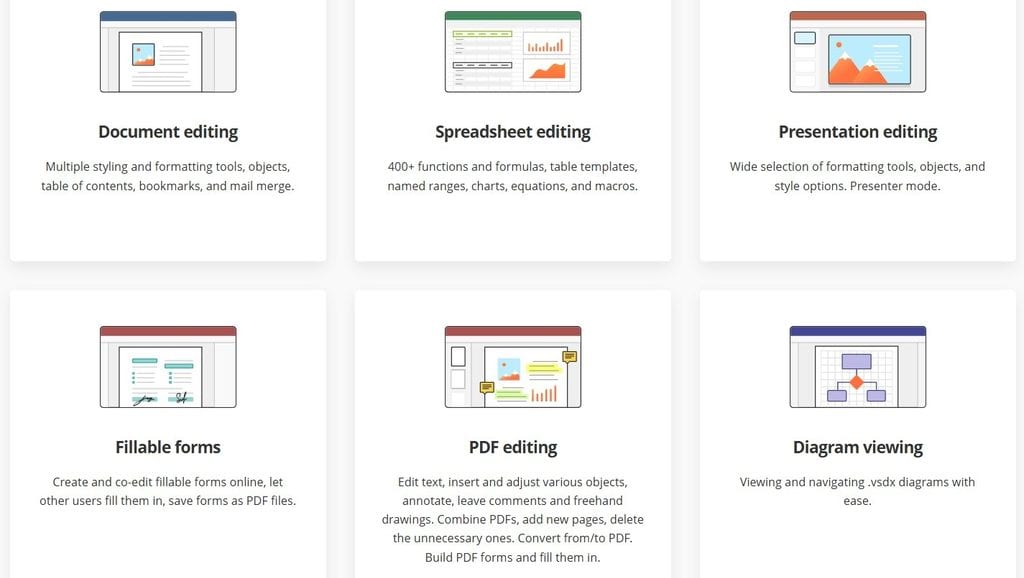
The best thing about ONLYOFFICE, besides being free, is its excellent compatibility with MS Office formats. To get started, choose your preferred installation method here. You’ll want to follow the ARM64 instructions for a Raspberry Pi.
Something not working? Don't waste hours going in circles. Ask in the RaspberryTips Community and get help from people who've already figured it out. Get unstuck now.
Photo Sharing
The funny thing about subscribing to Google Photos is that the extra storage meant for your pics is also shared across your other Google accounts. So if you forget to renew, you’re suddenly maxed out on space, and all of the emails sent to your Gmail bounce as undeliverable. Nice.
Personally, I don’t like how this works at all, not to mention the privacy concerns. You can get rid of a photo-sharing subscription by self-hosting a photo organizer on the Raspberry Pi for free.
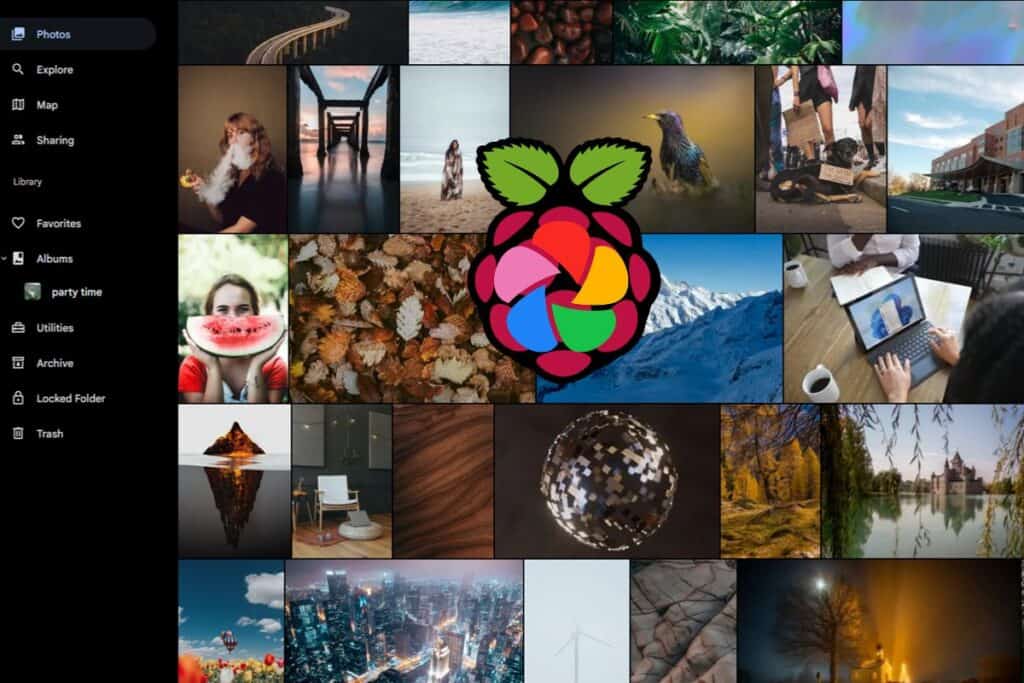
Immich is a free, private photo organizer with no paywall limits on storage or the number of users. You can sync and back up photos from your mobile devices, and it makes cataloguing and searching for photos way easier with its smart algorithms.
If you’re wondering how you can set this up, you’re in luck because we’ve already written a full tutorial: Immich on Raspberry Pi: Host Your Own Google Photos Alternative.
That’s all for today, folks! But if you liked the ideas we’ve shared with you here, don’t forget to check out our other articles for more ways to save money using your Raspberry Pi:
- 3 Raspberry Pi Projects That Pay for Themselves
- 5 Ways Raspberry Pi Can Save Your Company Money!
- 7 Raspberry Pi Projects That Will Save You Money
Whenever you’re ready, here are other ways I can help you:
Test Your Raspberry Pi Level (Free): Not sure why everything takes so long on your Raspberry Pi? Take this free 3-minute assessment and see what’s causing the problems.
The RaspberryTips Community: Need help or want to discuss your Raspberry Pi projects with others who actually get it? Join the RaspberryTips Community and get access to private forums, exclusive lessons, and direct help.
Master your Raspberry Pi in 30 days: If you are looking for the best tips to become an expert on Raspberry Pi, this book is for you. Learn useful Linux skills and practice multiple projects with step-by-step guides.
Master Python on Raspberry Pi: Create, understand, and improve any Python script for your Raspberry Pi. Learn the essentials step-by-step without losing time understanding useless concepts.
Master Linux Commands: Overwhelmed with Linux commands? This book is your essential guide to mastering the terminal. It includes practical tips, real-world examples, and a bonus cheat sheet to keep by your side.
You can also find all my recommendations for tools and hardware on this page.